
CRM with Google Calendar
A CRM with Google Calendar for your sales follow-ups
Your CRM knows who needs a reply; your calendar tells you how the day is filling up. Connect Google Calendar to WTS CRM to put pending follow-ups on a selected calendar while keeping the customer context and outcome in the CRM.
When follow-ups and calendars drift apart
A callback lives only in a note
The promise is saved against the lead but missing from the calendar you use to plan the day.
Dates are copied by hand
Changing a follow-up means remembering to update a second entry.
Calendar entries lack context
A generic reminder says to call someone, but the next action and previous conversation live elsewhere.
Keep your follow-up plan visible
Choose a calendar
Connect your Google account and select the calendar used for CRM follow-ups.
Sync pending follow-ups
Use the connection to create calendar events for pending follow-ups and send CRM changes to Google.
Check the connection
Settings shows connection and sync status, with a manual sync action when you need to refresh the calendar.
Keep outcomes on the lead
The CRM remains the place to complete the follow-up, record the result and decide the next action.
Plan from the follow-up queue
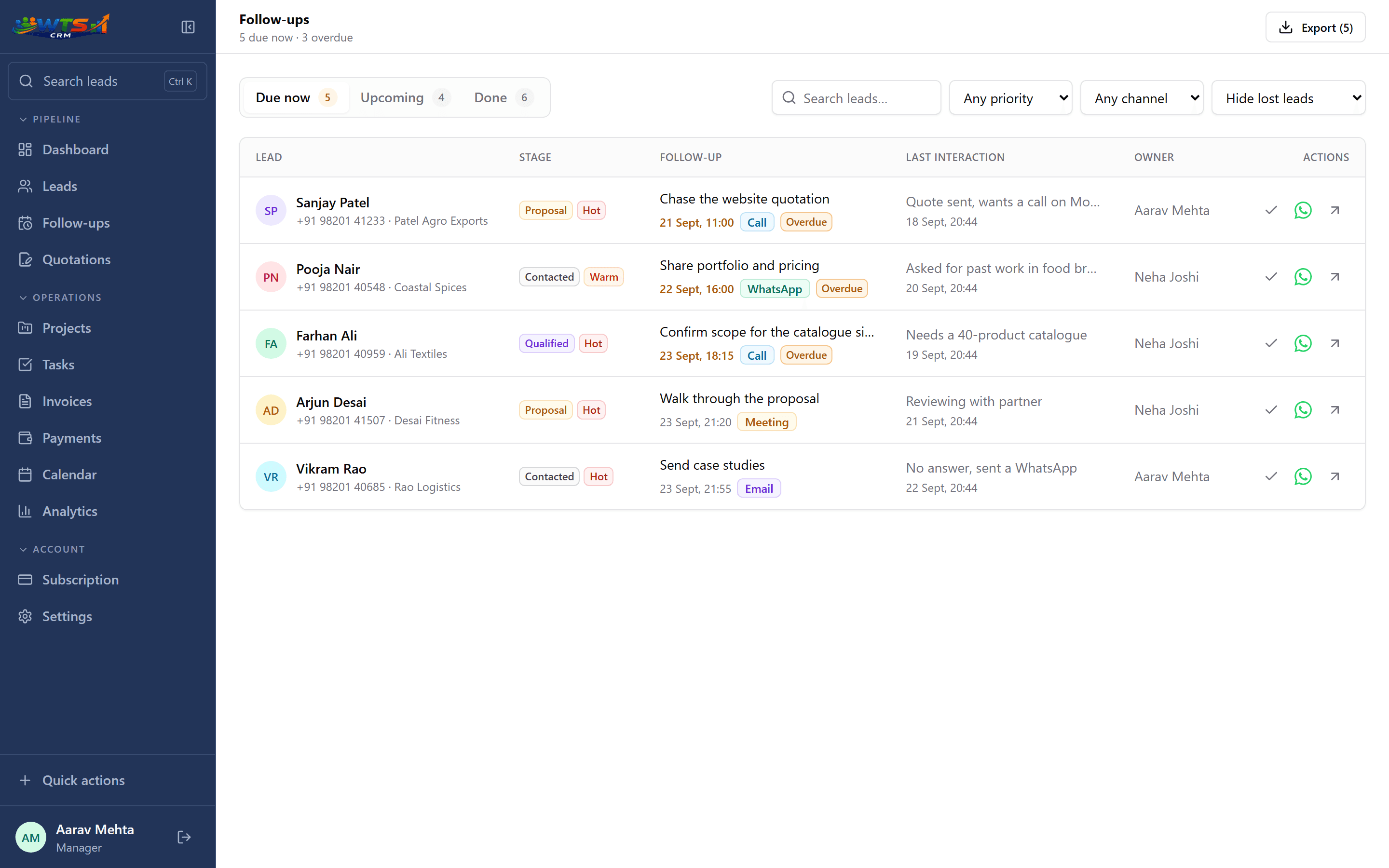
From a promised callback to a planned action
Connect Google
Open Google Calendar in Settings and authorise the account you want to use.
Select the calendar
Pick a calendar, save the selection and sync pending follow-ups.
Schedule the action in the CRM
Create or reschedule the follow-up against the lead so the CRM holds the current plan.
Complete and review
After contact, record the result in the CRM. Check sync status if the calendar has not caught up.
Follow-up sync has a specific job
This integration sends CRM follow-ups to Google Calendar. It is not a public appointment-booking page or a promise that every event in your Google account becomes a CRM record.
Make schedule changes in the CRM. Do not rely on editing a Google event to update the lead: the CRM is the source of the follow-up plan. The calendar planning guide explains a practical daily routine.
Keep a fallback when sync needs attention
The follow-up queue stays useful even if the Google connection needs attention. Review due and overdue items there rather than treating an empty calendar as proof that no sales work is waiting.
If an event looks stale, check the selected Google account and calendar, read the sync status in Settings and run a manual sync. Verify a test follow-up before depending on the connection for the whole team.
What a connected calendar helps you do
- Connect your Google account from CRM settings.
- Choose the calendar where follow-up events should appear.
- Manage follow-up dates and outcomes in the CRM.
- Check sync status and resync when a calendar looks out of date.
Test your daily planning routine
Use the free trial to connect your Google account, sync a test follow-up and change its date in the CRM. Compare workspace limits on the pricing page before choosing a plan.
Starter
₹499 / month
- One user workspace
- Up to 100 clients and leads
- Lead stages, temperature and notes
- Follow-up dates and reminders
- Basic CRM dashboard
The trial unlocks every feature for 3 days and asks for no card. Choose a plan only when it ends.
Frequently asked questions
Can I choose which Google Calendar receives follow-ups?
Yes. After connecting your Google account, choose a calendar in Settings and save it for follow-up sync.
Do edits in Google Calendar change the CRM follow-up?
Manage dates and completion in WTS CRM. This integration sends the CRM follow-up plan to Google; it does not promise two-way editing of arbitrary calendar events.
Does this provide a meeting-booking link for prospects?
No. The integration described here puts pending CRM follow-ups on your Google Calendar. A public booking flow is a separate capability.