
Excel alternative
Outgrown your lead spreadsheet? Move from Excel to a CRM
Excel is excellent for analysis and cleanup. A CRM becomes the better daily tool when the sheet needs to remember follow-ups, keep history and tell each person what to do next. Here is how to tell when you have reached that point, and how to move your leads across without losing any.
Signs you have outgrown the sheet
Dates pass silently
A follow-up date in a column does nothing when it arrives; someone has to sort and filter every morning.
Several versions of the truth
People edit copies, download it, or work from last week’s file.
No unambiguous owner
An “assigned to” column drifts out of date, and reassignments go unrecorded.
History scattered across cells
Notes pile up in one cell or live in chats, so nobody can read the story of a lead.
Managers have to ask
The current pipeline exists only when someone updates the sheet for a meeting.
Won leads are re-typed
Every sale is entered again into an invoice template or a billing sheet.
What changes when the rows become leads
Next steps with reminders
Each lead carries a dated follow-up; due and overdue ones appear in a queue and in a 9:00 email. More on follow-up tracking.
One owner per lead
Assignment is explicit, reassignment keeps the history, and on team plans members see only their own leads.
A record, not a row
Notes, follow-ups, quotations and invoices are attached to the lead instead of squeezed into cells.
Views instead of filters
Saved views such as Follow-up due and Nothing booked replace the filters you reapply every morning.
Your own columns, where they matter
Keep up to 25 custom fields (text, number, date, dropdown or yes/no) for the columns you really use.
Export whenever you want
Lists export as CSV, and your whole account as CSV or JSON.
The morning after the import
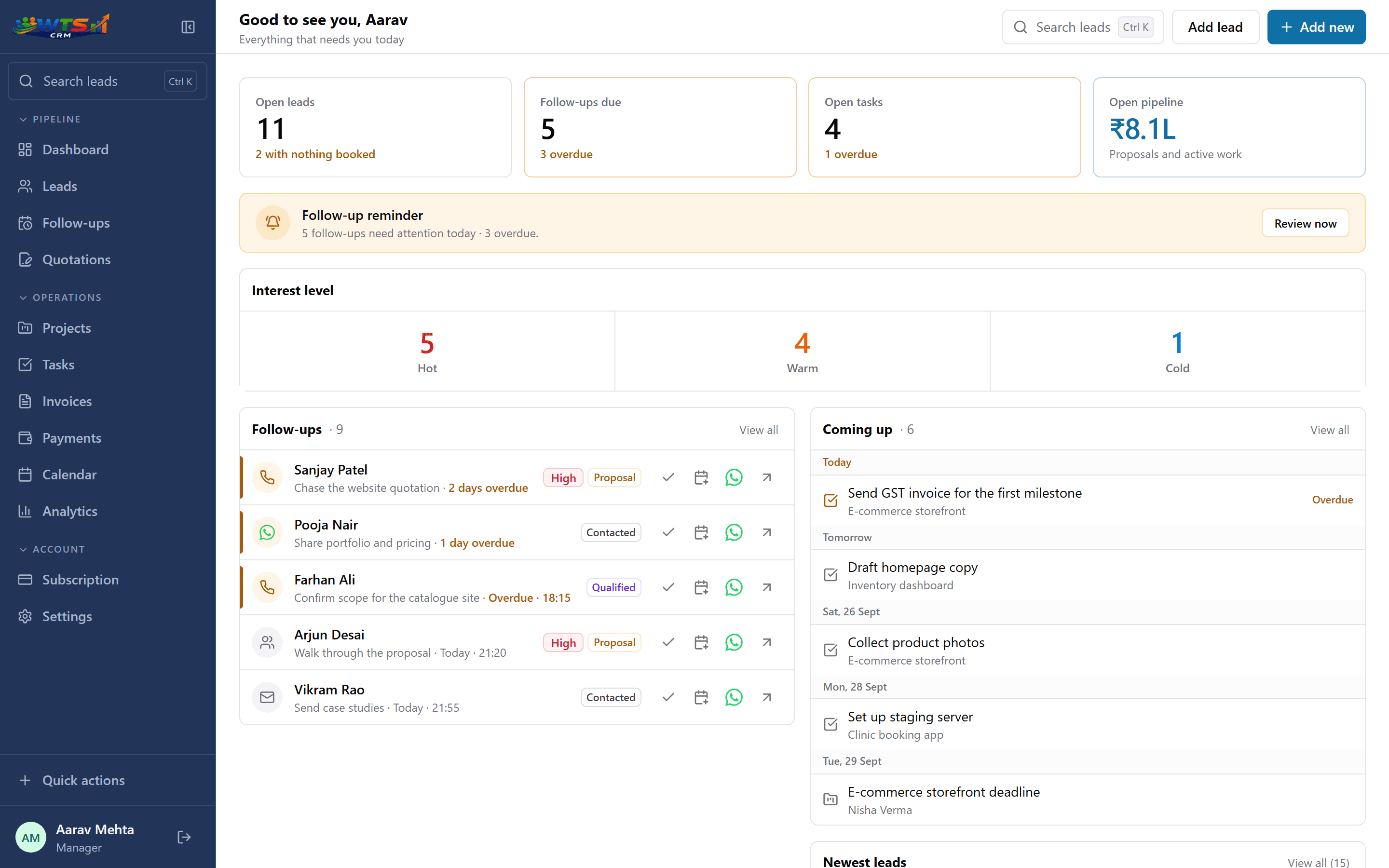
How to move leads from Excel into WTS CRM
Plan for an afternoon, not a project, and keep the original file untouched until the new routine works.
Back up and clean
Save an untouched copy, remove obvious duplicates and put phone numbers in one column.
Choose what moves
Carry forward the columns that help someone qualify, follow up or serve the customer, and leave the rest.
Upload the file
Import a CSV or XLSX file and map each column to a lead field or a custom field.
Check the preview
Invalid rows and duplicates are flagged before anything is saved.
Import and review
See the result for each row, then spot-check names, owners and counts against the sheet.
Book first follow-ups
Open the Nothing booked view and give every live lead a next step.
Excel vs CRM for lead management
Where each one is the better tool.
| Job | Excel | WTS CRM |
|---|---|---|
| Holding a list of leads | Works well for a few dozen rows | One record per lead, searchable by name, phone, company or email |
| Reminding you to follow up | Only if someone filters the date column | A due and overdue queue, plus a 9:00 email |
| Knowing who owns a lead | A text column that drifts out of date | An owner on every lead; reassignment keeps the history |
| Preventing duplicates | Manual checks or formulas | The same phone number cannot be added twice |
| Sharing with a team | Copies and edit conflicts | One workspace with owner, admin and member roles |
| Turning a win into an invoice | Re-typing into a template | Client, quotation, GST invoice and payments on one record |
| Ad-hoc analysis | Pivot tables and charts: Excel wins | Built-in reports, or export to CSV and analyse in Excel |
Where Excel still works well
A spreadsheet is inexpensive, easy to customise and excellent for ad-hoc analysis. One person with a small number of straightforward leads may need nothing more.
It is also a useful import and cleanup format. The problem is not Excel itself; it is asking a general-purpose grid to behave like a shared daily workflow.
Do not recreate the spreadsheet inside the CRM
A common mistake is demanding a custom field for every old column. Some values are outdated, duplicated or never used. Move only the information that helps someone qualify, follow up or serve the customer.
The trade-off is a subscription and a more defined process. Poorly chosen software can add admin, so test whether entering and updating a lead is genuinely faster for the people doing the work. The lead management software page shows what a lead record holds.
What you keep, and what you gain
- Keep Excel for analysis; use the CRM for the daily work.
- Rows become leads with an owner, a stage and a dated next step.
- Duplicates are caught at import, not discovered months later.
- Everything can go back out to CSV whenever you like.
Start small
Starter (₹499 a month) handles up to 100 clients and leads with follow-ups, enough to move a small sheet across. If yours is bigger, Solo (₹999) has no limit. The free trial covers every plan’s features, so you can test the import first.
Starter
₹499 / month
- One user workspace
- Up to 100 clients and leads
- Lead stages, temperature and notes
- Follow-up dates and reminders
- Basic CRM dashboard
The trial unlocks every feature for 3 days and asks for no card. Choose a plan only when it ends.
Frequently asked questions
Is Excel a CRM?
Excel can hold a lead list, but it does not provide CRM workflows such as record ownership, activity history, role-based access and a due follow-up queue.
What file formats can I import?
CSV and Excel (XLSX). If your leads are in Google Sheets, download them in either format first.
What happens to duplicate rows?
Duplicates are flagged in the import preview before anything is saved, and a phone number already in the workspace cannot be added again.
Should I stop using Excel completely?
Not necessarily. Excel remains useful for cleanup and analysis; the CRM should become the shared system for active leads, ownership and follow-ups.
Can I get my data back into Excel later?
Yes. Lists export as CSV, and you can export your whole account as CSV or JSON at any time.