
Website lead capture
Send website enquiries straight into your CRM
A contact-form enquiry that arrives as an email is easy to read and easy to forget. WTS CRM gives your website form a direct line into your lead list: each submission becomes a lead with its source recorded, an owner assigned and the visitor’s message in the notes.
What happens to website enquiries today
They land in a shared inbox
The form emails info@, where an enquiry sits between newsletters and invoices until someone notices it.
Copy, paste and typos
Someone retypes the name and number into a sheet, and one wrong digit means the lead cannot be called.
No owner, no reply
Everyone can see the email, so everyone assumes somebody else has answered it.
The same person, entered twice
A visitor who fills in the form again next week becomes a second row, with the history split between the two.
Two ways to connect your form
Use the form you already have, or paste a plain one from Settings. Both deliver straight to your lead list.
A ready-made form to paste
Settings gives you a short HTML form (name, phone, email and message) to paste into your site and style to match. Submissions arrive tagged website-lead, and a hidden field filters out basic spam bots.
A webhook for the form you already use
Keep your existing form and send it to a private URL from Settings → Lead sources. There are step-by-step cards for WordPress (Elementor Pro, Contact Form 7, WPForms and Gravity Forms) and Google Forms.
Other builders, through Zapier
A form on another platform connects through Zapier, Make or Pabbly, or anything that can post JSON or form data to a URL.
Source, tag and owner on arrival
Each lead source has a name that becomes the lead’s Source, a tag for filtering and a default owner, so no new enquiry is left unassigned.
Repeat enquiries, not duplicates
When a webhook delivers a phone number or email you already have, a note is added to the existing lead and no second record is created.
A log you can check
Recent deliveries shows which leads arrived and why any were rejected or failed, and each source shows when it last received a lead and how many came in over 30 days.
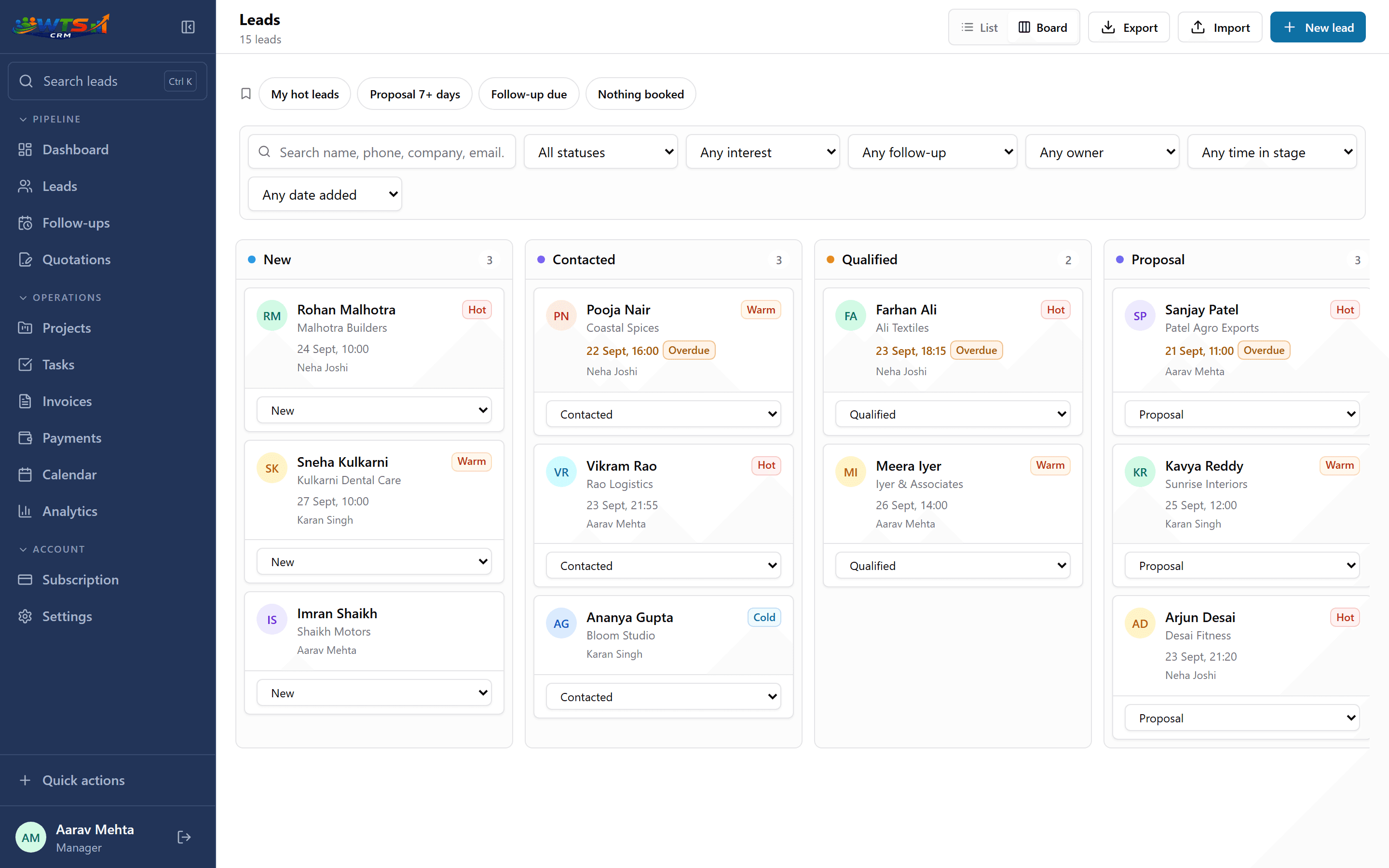
Where a website enquiry lands
Set it up in an afternoon
Pick the route
Paste the ready-made form, or keep your own form and use a webhook.
Create the source
In Settings → Lead sources, choose a name, a tag and the teammate who should own these leads.
Connect the form
Paste the URL into your form plugin’s webhook setting, or the snippet into your page.
Send a test lead
Use the test button, then submit the real form once and find the lead in your list.
Decide the first response
Switch on the website-leads automation template so a new enquiry is assigned, gets a call booked for the next day and notifies its owner.
Check the log
Look at recent deliveries each week, so a form that has stopped sending does not go unnoticed.
Be clear about what this is
WTS CRM is not a form builder or a landing-page tool. It has no pop-ups, chat widgets or multi-step forms. You bring a form, or paste the plain one from Settings, and WTS CRM receives what it submits.
Connecting an existing form is a one-time change, usually a few minutes for whoever maintains the site. A lead needs a phone number or an email address to be accepted. Only owners and admins can create lead sources, and each URL is a secret: if one leaks, generate a new one from the same screen and the old one stops working.
Not only website forms
The same Lead sources screen accepts Google Ads lead forms, IndiaMART enquiries and WhatsApp Business API tools, each with its own URL, so every lead says where it came from. The step-by-step version is in how to connect your lead sources.
Capture is only the start. What wins the enquiry is the reply, so pair it with follow-up tracking and keep every captured lead in one lead management list.
Who sets this up
Businesses with a WordPress site
A contact form you already have, connected with a webhook add-on and no change to its design.
Web agencies
Your own enquiry form feeding your own pipeline. See CRM for web development agencies.
Marketing agencies
Campaign landing pages where each form needs its own source. See CRM for digital marketing agencies.
Advertisers sending clicks to a landing page
Paid enquiries that need a fast first call. See managing Google Ads leads.
What changes when the form feeds the CRM
- No enquiry waits in an inbox to be copied across.
- Every website lead has a source, a tag and an owner from the first minute.
- A repeat enquiry is added to the existing lead, not entered twice.
- A delivery log shows that the connection is still working.
What it costs
Captured enquiries land in the lead list that every plan includes. Starter is ₹499 a month for one person and up to 100 clients and leads; Solo (₹999) removes the limit, and Team (₹2,499) adds 5 seats, so website leads can go to a named teammate.
Starter
₹499 / month
- One user workspace
- Up to 100 clients and leads
- Lead stages, temperature and notes
- Follow-up dates and reminders
- Basic CRM dashboard
The trial unlocks every feature for 3 days and asks for no card. Choose a plan only when it ends.
Frequently asked questions
How do I connect my website form to a CRM?
In WTS CRM, create a lead source in Settings and paste its URL into your form’s webhook setting, or paste the ready-made form into your page. Each submission then arrives as a new lead.
Does it work with WordPress forms?
Yes. Elementor Pro has a webhook action built in; Contact Form 7, WPForms and Gravity Forms connect through a webhook add-on. Common field names are recognised automatically.
Do I need a developer?
Usually not for WordPress or Google Forms, where the steps are shown on the source’s card. Pasting the ready-made form needs access to your page’s HTML, and a custom-coded site needs a small change by whoever maintains it.
What happens if the same person enquires twice?
A webhook delivery with a phone number or email that matches an existing lead adds a note to that lead, so the history stays in one place.
Which fields are captured?
Name, phone, email, company and message. Any other fields your form sends are kept in the lead’s note. A lead needs at least a phone number or an email.
How do I know the form is still working?
Each source shows when it last received a lead, and the recent-deliveries log lists what arrived and anything that was rejected or failed, with the reason.
Does WTS CRM include a form builder?
No. It provides one plain form you can paste and style, and it receives submissions from the form tools you already use.